How to use the AFL Mock Draft Simulator
Your first mock draft works best as a small experiment. Make a few picks, inspect what changed, then compare a second version rather than trying to predict an entire draft perfectly.
1. Choose the class and review the starting order
Open the simulator and choose the draft class you want to explore. The current class uses the 2026 setup; historical classes are separate exercises. The welcome guide can be reopened from Tools if you need a reminder of the workspaces.
Use Tools → Set Ladder Order to inspect the ladder assumptions and pick ownership. A club's position on the ladder and the club that owns its original pick are different things. A traded selection may still be connected to the original club's finish even though another club now holds it.
Check custom rules before you begin. A protected opening zone or a different bid setting creates a different experiment. Save a baseline version before making those changes so your comparison has a clear starting point.
2. Make a selection and read the board
In Run Draft, check which club is on the clock. Search or filter the available players, open the scouting information, and select Draft Player on the prospect you want. A listed draft range helps organise the pool; it is not a promise that the player will be selected there.
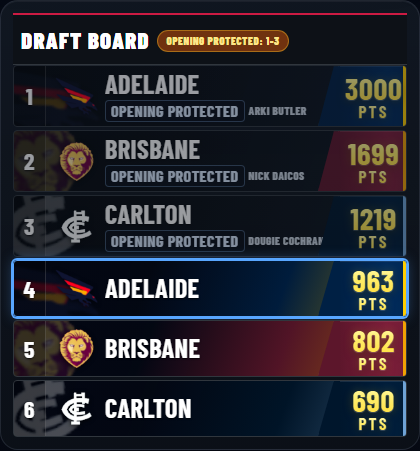
For an untied player, review the selection and the next club on the clock. For a father-son or academy player, inspect the bid-matching decision before continuing. The club shown as making a bid may not be the club that ultimately receives the player.
3. Pause when a bid changes the order
The useful question is not just “who went at pick one?” Ask which club received the player, which picks paid for the match, and which selections moved. A club can lose later draft capital while securing its tied prospect. That changes its ability to address another need.
For a worked points calculation and the differences between 2026 and older settings, use the draft points and bidding guide. Do not assume every class uses the same discount or matching restrictions.
4. Branch a three-pick experiment
Try this: best available or positional need?
- Save a version before a club's selection. Record the two available prospects you are deciding between and the role each would fill.
- Choose your preferred prospect and make the next two selections for the clubs on the clock.
- Return to the saved version, choose the alternative prospect, and make those next two selections again.
Compare the players left on the board. If both versions leave a similar option for the club's next pick, paying a premium to address the role early may offer less benefit than you first thought. If the role disappears from the pool, the trade-off is different.
This is a controlled scenario, not evidence of what a club will do. Record your assumptions so someone else can understand why the two versions differ.
5. Review results and save your work
Use Results to inspect each club's haul and any trade recap. Save controls in the top bar let you keep a version to revisit. Draft saves use this browser's local storage, so another device or browser will not automatically have the same save. Clearing site data can remove it.
Before a reset, make sure you have kept the version you want. When comparing results, keep the same class, starting ownership and rule settings unless the purpose of the experiment is to change one of them.
If something looks wrong
Check the selected class, custom rules and starting pick owner first. A point value can change as the live order changes. If the result still looks wrong, send the class, club, pick, rule settings and the steps you took to sotaramyt@gmail.com. Do not send passwords or private account details.